
VEED now presents both AI-led video creation and a subtitle-focused editing workflow. Start by deciding whether you already have footage to edit or want to generate new material; those are different production jobs with different usage allowances.
What you can do
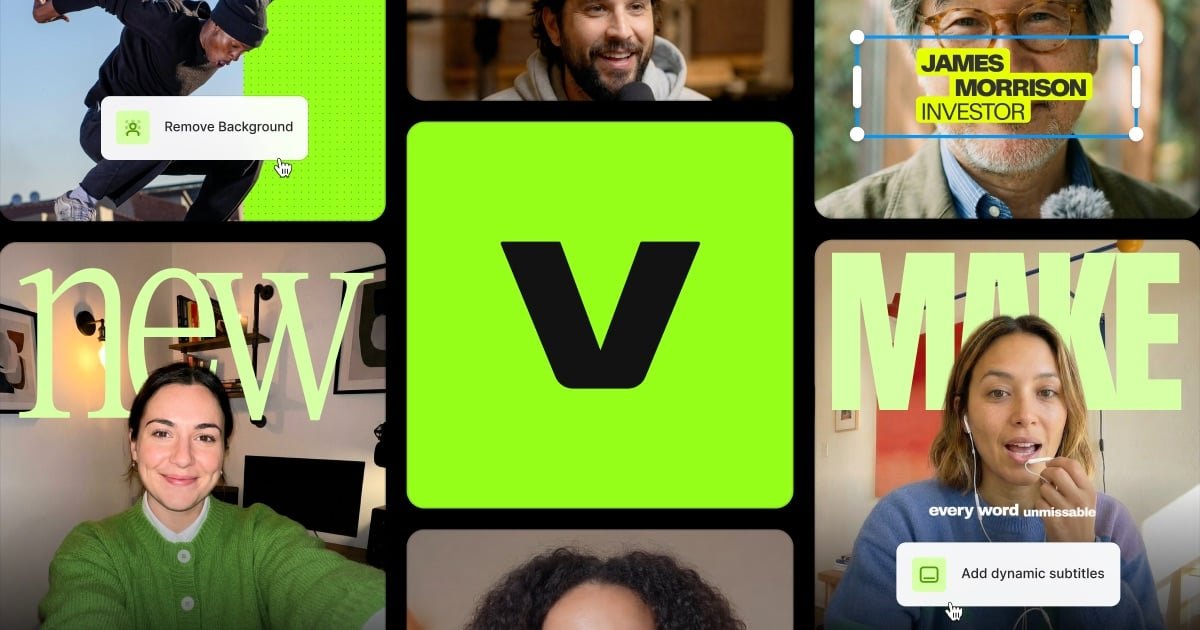
- Add and revise subtitles on existing footage.
- Build a video using the advertised AI-creation workflow when that is the intended task.
- Apply the brand styling described by VEED to keep recurring videos visually consistent.
- Explore dubbing separately from ordinary trimming and captioning.
Prepare a captioned talking-head clip for several social feeds.
How to use it
Choose editing or generation
For recorded footage, enter the editing/subtitle path. Use AI creation only when generating new material is part of the brief.
Resolve the spoken message
Correct the wording of captions or generated speech before spending time on brand styling and visual polish.
Check the allowance for this task
Verify the export and the particular AI feature being used. Do not infer dubbing or generation credits from ordinary editor access.
Workflow illustration · not a product screenshot
Limits & things to check
- Export quality, watermarks and AI usage depend on the subscription.
- Generated speech and subtitles need checking against the original material.
Questions before you start
I already recorded my video. Must I use the AI-generation workflow?
No. Captioning and editing existing footage are distinct from generating a new video; choose the path that matches the source you have.
Does subtitle access establish a dubbing allowance?
No. Verify dubbing and generation separately in the current feature and credit table.
What needs a final human check?
Names, technical terms and the meaning of generated speech, followed by the position and readability of captions in the final frame.
Other options to compare
These options cover related tasks; their features and licensing differ.